
On this screen, you can configure the date & time settings of your Ewon device. For Talk2M communication, the date of the device must be correct.
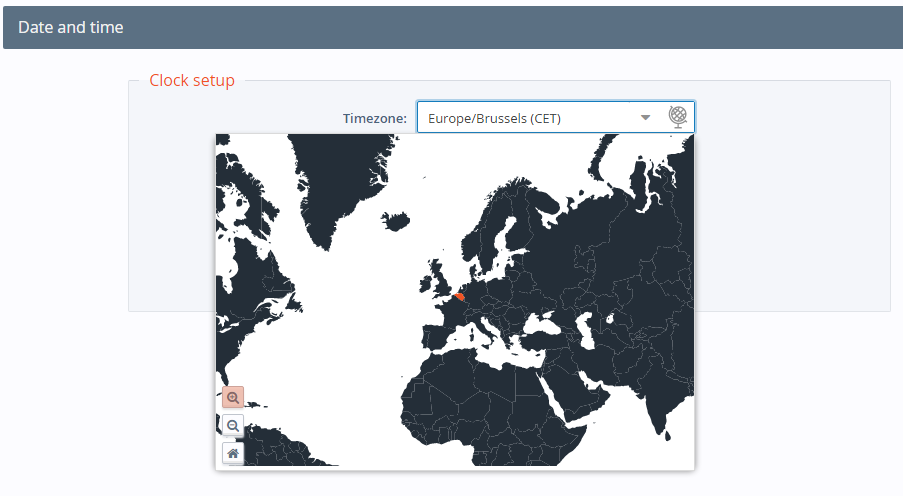
Expand the dropdown menu to select your time zone from a list or click on the globe icon to select your time zone from a map.
The clock can be updated either manually or by syncing with an NTP server. If you select Manual as your update method, be sure to enter the date and time in the specified format.

To enable automatic date and time synchronization with an NTP server, select Update clock via NTP and adjust the NTP synchronization settings as needed.
The default remote NTP server is ntp.talk2m.com, but other NTP servers can be used.
For Ewon devices that support historical logging, use the Record data in UTC check box to indicate whether timestamps for logged records should use local time or UTC.
Click Next to move to the next part of the System Wizard.