Modem Firmware - Version & Update
A firmware is a software that is embedded into a hardware device.
This firmware controls how your device behaves. You might already be familiar with this type of file as they are needed to update your Ewon devices.
As a complex component, the modem can also need this kind of operation: a modem firmware update.
Why to update?
A new modem firmware provides enhancements that can resolve cellular connection instability due to networks modification of your (cellular) ISP.
If you encountered recently cellular stability issues on an Ewon device, then we suggest to upgrade the modem firmware to this new version.
Firmware Version Verification:
To confirm if a modem update is required, you should verify its current firmware version.
The modem firmware version can be verified by browsing to the following path in your Ewon device's web interface:
Diagnostic > Statu> System Info > Info
You should also verify the modem version after a modem update to confirm the update was successful.
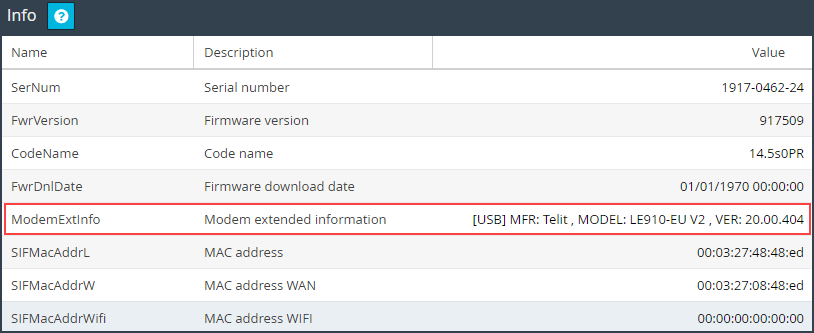
Download a Modem Firmware
You can find the latest modem firmware version for each Ewon model.
Devices | Modem firmware version |
|---|---|
| The last modem firmware version for this models is: Telit, MODEL: LE910C4-EU, VER: M0F.670013 Firmware files are available on the Support & Download > Firmware section of Extension Card 4G EU (FLB320A) product page. Warning
|
| The last modem firmware version for these models is Telit LE910-EU V2 20.00.406 Possible modem firmware version on the field requiring update: 20.00.403, 20.00.404 Warning
|
| The last modem firmware version for these models is: Telit LE910-NA V2 20.00.507 Possible modem firmware version on the field requiring update: 20.00.502, 20.00.504, 20.00.505 Warning
|
| The last modem firmware version for these models is Telit, MODEL: HE910-D, VER: 12.00.028 Possible modem firmware version on the field requiring update: 12.00.026 No firmware update is available from firmware 12.00.24. In case of issues, the unit or the extension card must be changed. if you need to update your Ewon hardware from 3G to 4G, or 5g, read our SSH-097-00: How to upgrade my Ewon hardware from 3G to 4G. Warning
|
| The last modem firmware version for these models is Telit LE910-SVG 17.01.573 There is no update available for that model. |
| The last modem firmware version for these models is MC7430 VER: SWI9X30C_02.33.03.00 Possible modem firmware version on the field: 02.24.05.06 There is no manual update possible for that model. |
| The last modem firmware version for these models is MC7330 VER: SWI9X15C_05.05.39.11 There is no update available for that model. |
How to Update the Modem Firmware
Regardless of the method used to update the modem firmware of your cellular-based Ewon device, the update can last between 5 to 15 minutes.
Caution
A modem firmware update is a critical process.
Make sure your Ewon device does not experience any power interruptions during the upgrade process, which can take up to 15 minutes and which includes a reboot of the Ewon device.
The modem firmware update can be performed locally or through the remote connection.
However, if possible, we recommend doing the modem firmware upgrade when you are locally connected to the Ewon
SD Card Commissioning | FTP Server |
|---|---|
The Ewon Cosy and the Ewon Flexy can be updated using an SD card.To do so, you will need to copy the .edf file (based on your model & modem firmware target) to the SD card & insert this SD card into your Ewon device. You can update the modem firmware of your Ewon device by following the same process as updating the OS firmware of your Ewon device:
| The Ewon device embeds an FTP server that you can use to update the modem firmware. To do so, you need to open an FTP connection with your FTP client to your Ewon device and drop the .edf file (based on your model & modem firmware target).
|
Modem Firmware Troubleshooting
Caution
Error: There is no change in the modem firmware version.
To verify that the update has successfully occurred, you must verify the log of your Ewon device.
To do so, go to Diagnostic >Logs > Event Logs.
If the update was a success, the Ewon device should display the following logs:
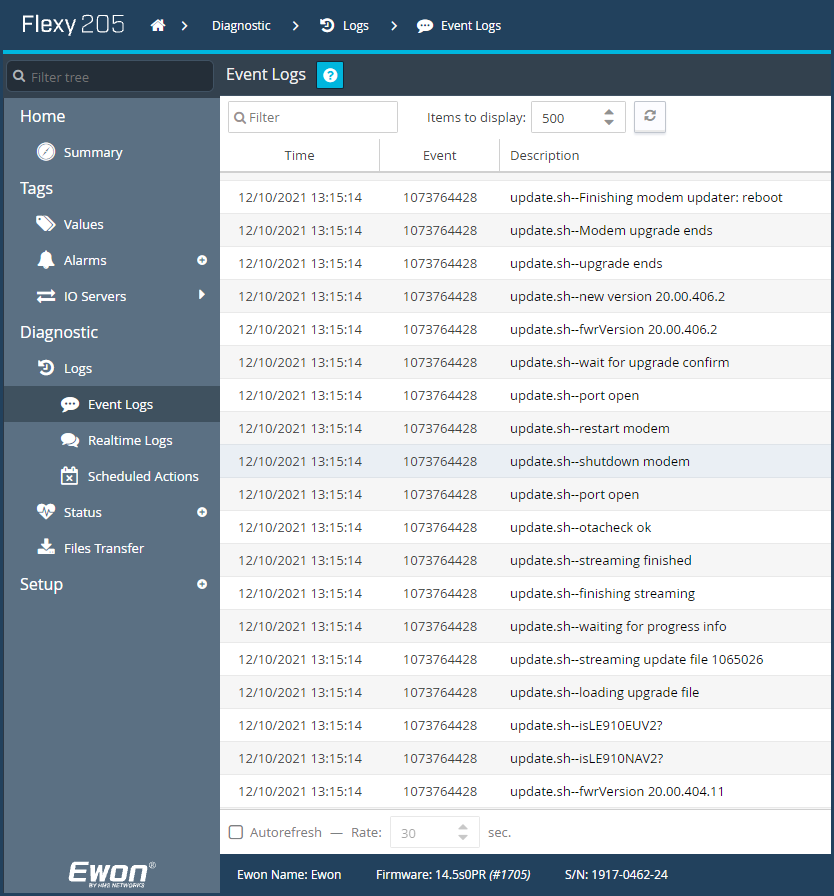
Additional information can be displayed in the logs to indicate why the modem firmware update wasn’t applied.
Possible reason of the modem update process rejection:
Already using the same or a superior modem firmware version
Current modem firmware version is not eligible for an update to that specific modem firmware version
Update patch is not corresponding to the modem model
Modem is not detected
Caution
Error: The Ewon does not reply anymore.
The Ewon device can take up to 15 minutes to perform the update.
It may happen that the Ewon device takes longer than expected to apply the update, reboot and be reachable again.
This doesn’t necessarily mean the update failed:Make sure you wait long enough before checking if the Ewon is online/reachable again.
If your Ewon device is on a remote site and is configured to use a triggered connection, you need to send a wake-up sms again to switch the Ewon device back online.