Acquiring logged information for Ewon by HMS Networks support team
Check out this article and learn how to acquire information for the WEBfactory 2010 support team when needed.
Logs
Windows
Export Application Event Log
Export Installation Event Log
Export System Event Log
IIS
Copy of IIS Log Files
Ewon by HMS Networks
Export Ewon by HMS Networks Event Log
Copy of the Ewon by HMS Networks Log files (WCS or OPC Log files)
Silverlight
Copy of the log files from the Silverlight runtime logs stored in the application memory storage (WFSilverlightTrace.txt) related to all clients and server. Because the file path is variable, please search for that file.
Additional Information
HDD free space / used space / HDD full?
Database current size / database full?
Clients: does the actual client still get data? How many clients are connected?
Memory: what is the currently used memory, what is he CPU load?
Task Manager: Information of CPU load, memory, Handles, Threads, GDI Object.
Create a snapshot of a virtual machine.
Activate Logging
Windows: no special settings needed.
IIS: configure Internet Information Service Manager.
IIS Logging options
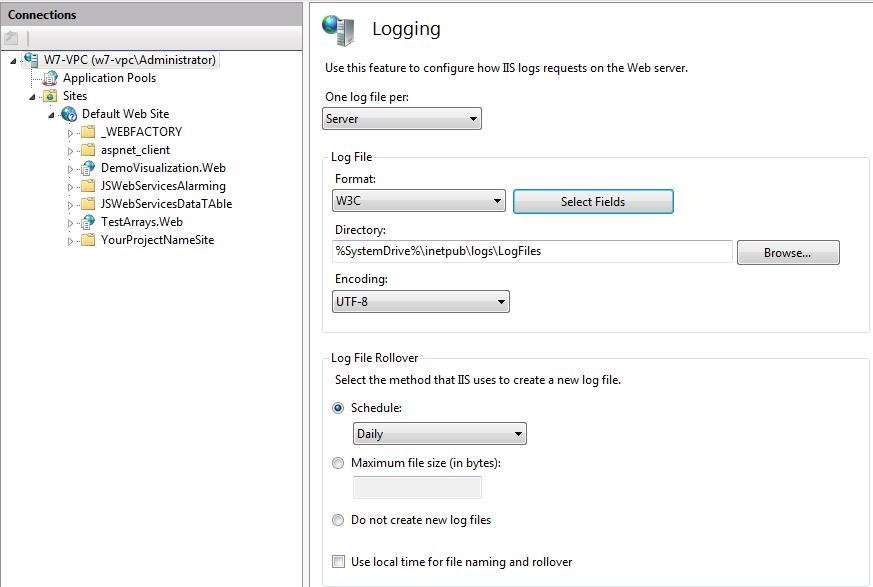
Setting the IIS logging
On Windows 2003 Server, the IIS Logging settings are made at the Default Web Site Properties.
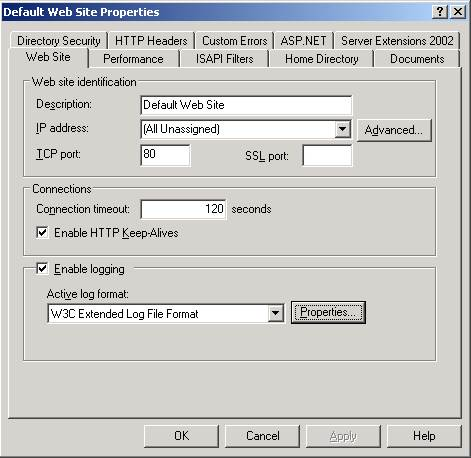
Windows 2003 Server
EventViewer: set the Maximum log size to 20480 KB (EventViewer > Applications and Services Logs > Ewon by HMS Networks > Properties)
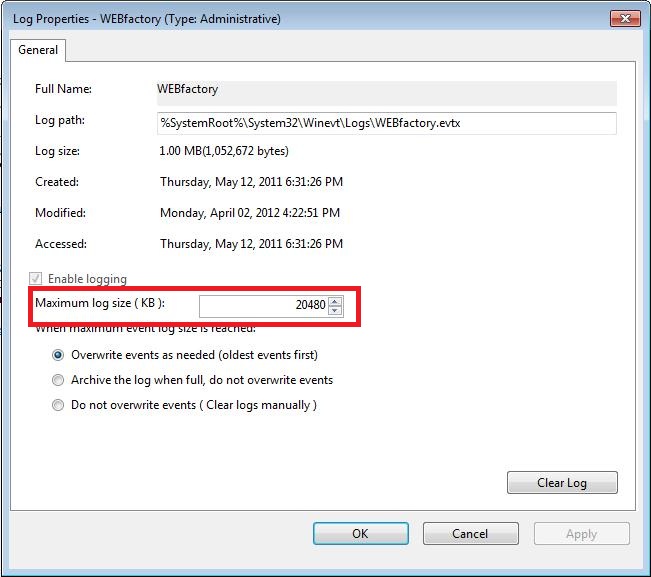
Setting up the log size for Ewon by HMS Networks logs in EventViewer
Activate Silverlight application storage
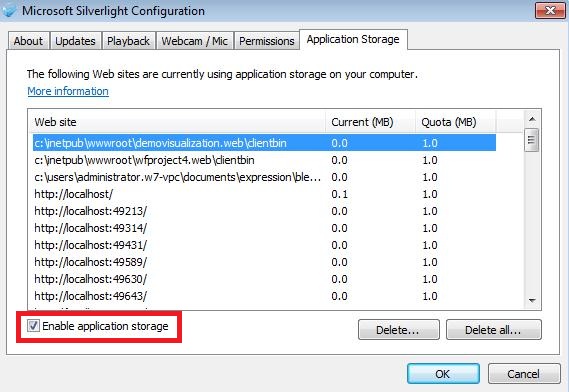
Enabling application storage in Silverlight