Filtering BACnet objects when importing a BACnet configuration in Ewon by HMS NetworksStudio
Check out this article and learn how to filter BACnet objects when importing a BACnet configuration in Studio.
Ewon by HMS NetworksStudio only imports object types that have the value of "Required" as 1.
In order to import only the desired BACnet object types, the BACnetObjectTypes.xml file must be edited, and all the desired BACnet object types must have the value of Required set to 1. The objects that will have the value of Required set to 0 will not be imported.
Navigate to the WEBfactory 2010 installation folder > Studio.
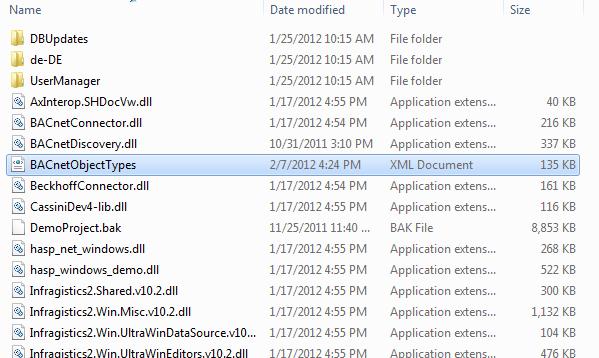
The BACnetObjectTypes.xml is located in the Studio folder inside the Ewon by HMS Networks installation folder
Open the BACnetObjectTypes.xml in an editor and search the string Required.
Tip
Use the Find and Replace functionality of the editor for easier replacement.

Replacing the value of Require with 1 for the desired object types
Like in the picture above, replace the value of Require with 1 for the desired object types. The object types not desired for importing should have the value of Required set to 0.
Save the XML document.
Open Ewon by HMS NetworksStudio and import the BACnet configuration. You will notice that only the selected object types have been imported.
Note
The BACnetObjectTypes.xml file will be loaded when the Ewon by HMS NetworksStudio is launched. If the Studio is opened, close it and re-open it. Any change in the BACnetObjectTypes.xml file will require Ewon by HMS NetworksStudio to be restarted.
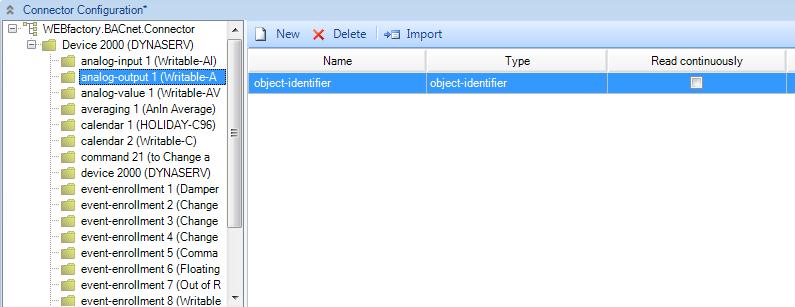
Only the selected object type has been imported
The BACnet objects that have not been selected may be displayed in the navigation tree, but they are not imported. As we have selected for import only the analog-output > object-identifier, only this object type is available after the import.